Installation for Google Chrome
Get up and running in minutes. Follow these steps to install the Okatee Chrome extension and start scrubbing metadata from your Gmail attachments.
1. Install the Okatee chrome extension
Install the Okatee chrome extension from the Chrome Web Store.
2. Refresh Gmail
Make sure you refresh any windows running Gmail after installing. The scrubbing button will not appear until the browser has refreshed.
3. Pin the extension to the toolbar
Pin the extension to the toolbar for easy access.
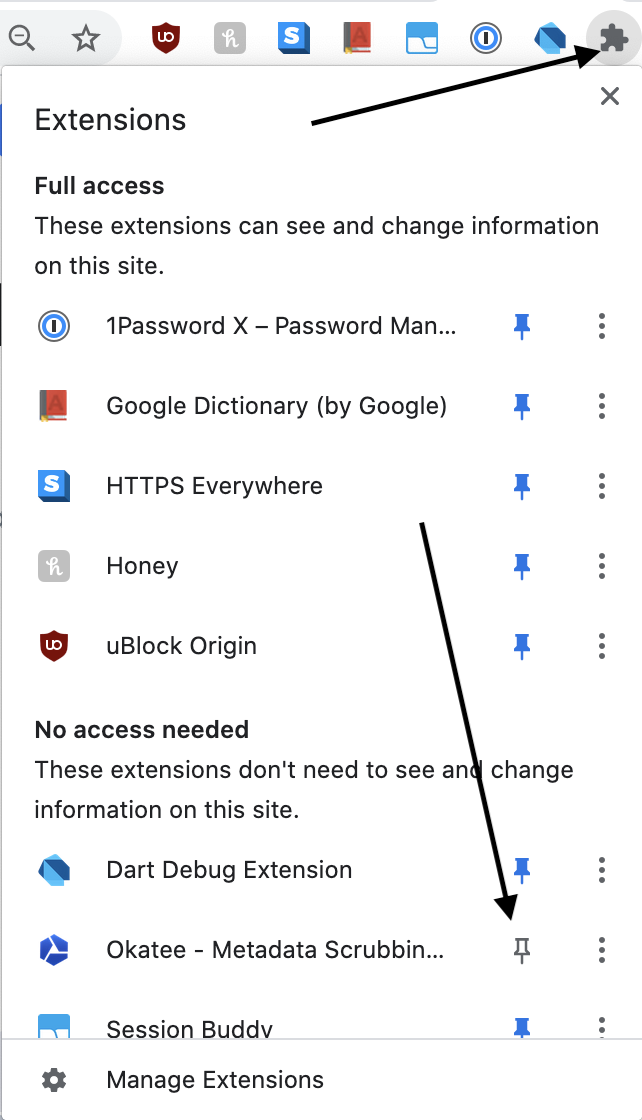
4. Edit your settings
You can now edit your settings by clicking the Okatee icon.

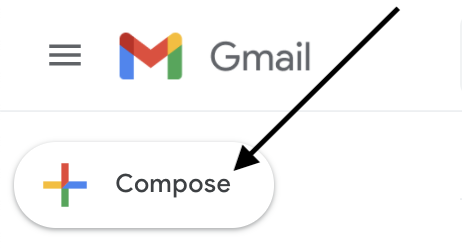
5. Compose an email in Gmail
To test the add-on, compose an email in Gmail.
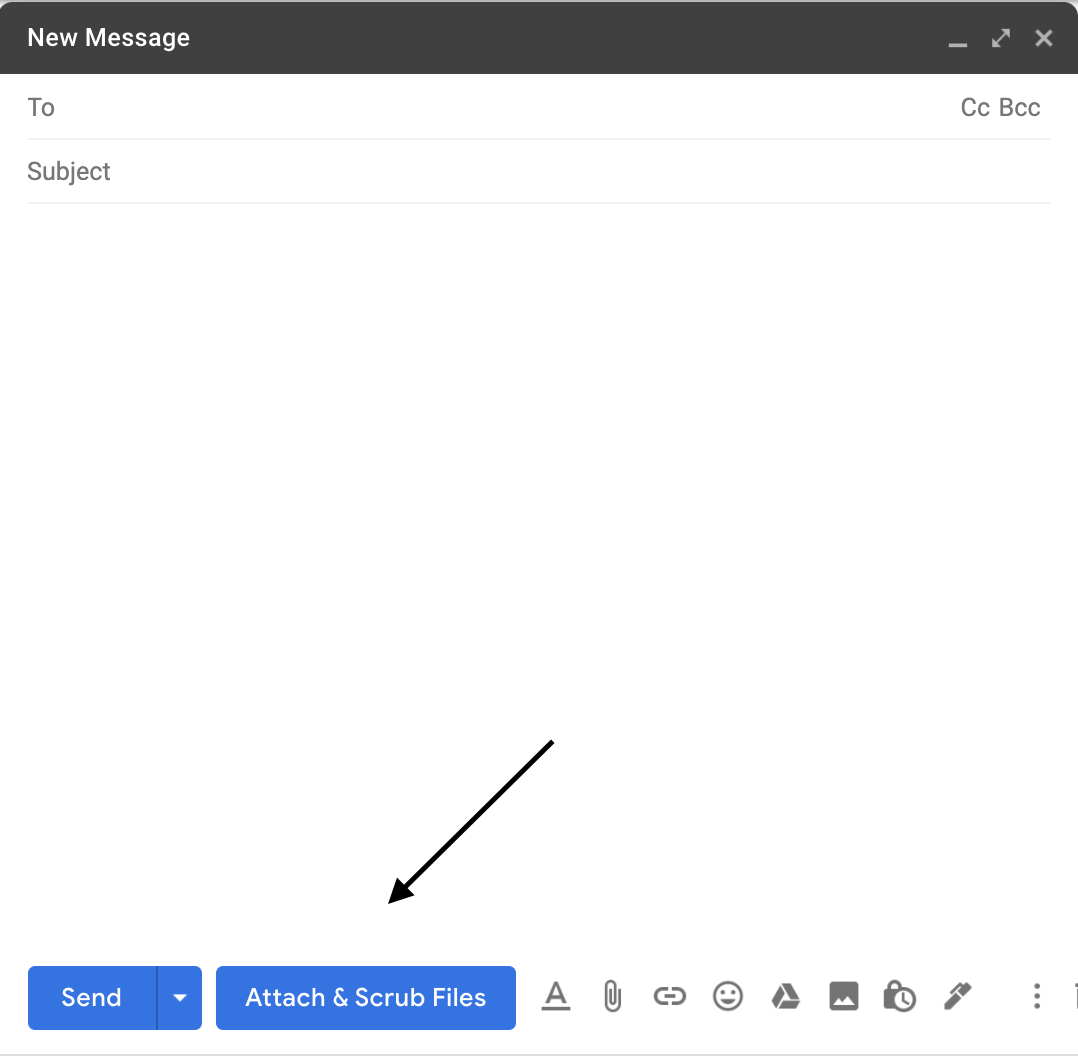
6. Use the scrub button
You should now see an additional button in the compose window. Use this button to scrub files.
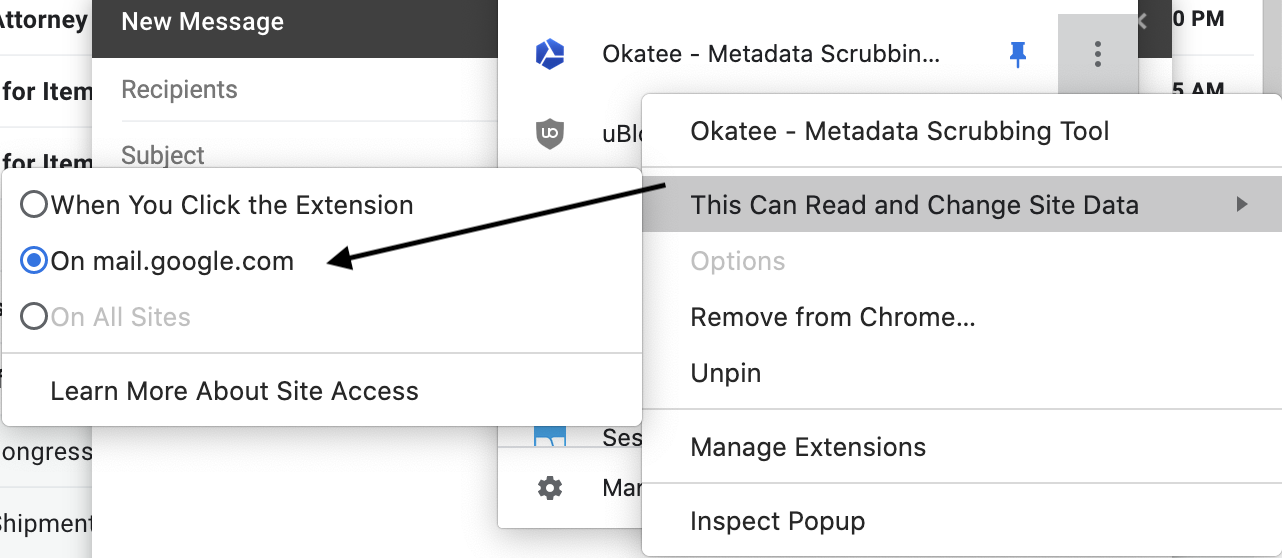
7. Enable permissions if needed
If you cannot see the compose button, you may need to enable the appropriate permissions. Then refresh the page.